> ## Documentation Index
> Fetch the complete documentation index at: https://docs.makemypass.com/llms.txt
> Use this file to discover all available pages before exploring further.
# Edit Event Settings
> The **Edit Event** page is crucial for configuring all event-related settings.
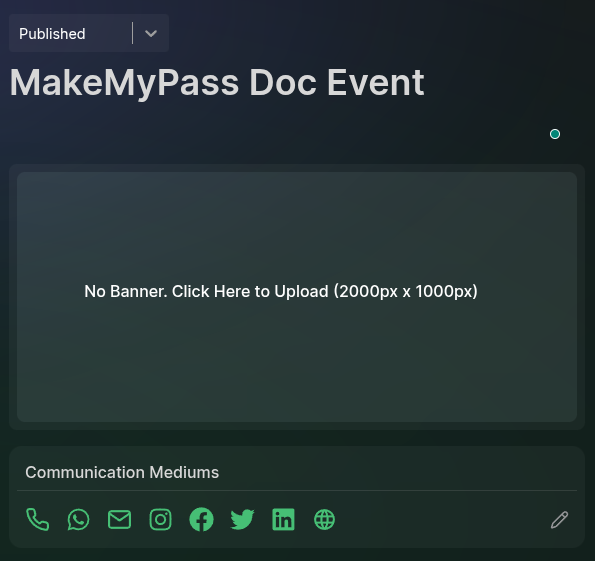 Each event has **three primary states**:
* **Draft:** The default state when creating an event. The public event page is inactive.
* **Published:** The organizer must change to this state to make the **event registration form** public.
* **Completed:** Once the event is completed, the organizer should update the status to **Completed** to stop new registrations.
The event status is automatically updated if the event's end date and time are set.
## Event Banner
The organizer can update the event banner from this page. By default, no banner is present. Click the **Banner Card** to upload an image.
The recommended size for the event banner is **2000 x 1000 pixels**.
## Communication Mediums
The organizer can add communication mediums, which will be displayed on the **event registration page** so attendees can use them
to contact the organizer.
### Adding a Communication Mediums
1. Click the **Edit** icon in to the communication mediums box.
2. In the modal that opens, add the required mediums link and click **Save**.
You can open the same modal to edit or delete existing mediums.
## About the Event
Below the communication mediums, use the **text editor** to add a description about the event. This will be shown on the registration page.
## Public Event URL
Each event has **three primary states**:
* **Draft:** The default state when creating an event. The public event page is inactive.
* **Published:** The organizer must change to this state to make the **event registration form** public.
* **Completed:** Once the event is completed, the organizer should update the status to **Completed** to stop new registrations.
The event status is automatically updated if the event's end date and time are set.
## Event Banner
The organizer can update the event banner from this page. By default, no banner is present. Click the **Banner Card** to upload an image.
The recommended size for the event banner is **2000 x 1000 pixels**.
## Communication Mediums
The organizer can add communication mediums, which will be displayed on the **event registration page** so attendees can use them
to contact the organizer.
### Adding a Communication Mediums
1. Click the **Edit** icon in to the communication mediums box.
2. In the modal that opens, add the required mediums link and click **Save**.
You can open the same modal to edit or delete existing mediums.
## About the Event
Below the communication mediums, use the **text editor** to add a description about the event. This will be shown on the registration page.
## Public Event URL
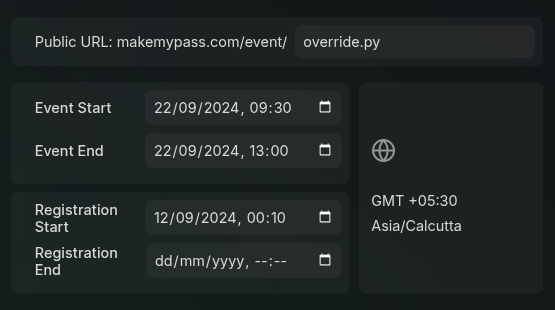 * By default, the public event URL is generated from the event title, which is set during the event creation process.
* It can be manually updated from the **Public URL** section.
* The base URL (`makemypass.com/event`) is **not editable**, but the event title portion **is editable**.
Changing the event URL **after publishing** will render the old URL useless. Proceed with caution.
## Event Dates
The event dates are crucial for setting the event's timeline. The organizer can set:
* **Event Start & End Dates:** The actual dates when the event occurs.
* **Registration Start & End Dates:** The time frame during which the registration form is active.
## Primary Event Options
An **AI-enabled feature** allowing users to provide registration details via voice input, which will be transcribed and filled automatically.
If the event is **invite-only** (no public registration form), enable this setting. In
such an event attendees can be added manually by the organizer. using the bulk or individual methods.
If the event has **no physical location**, enable this setting to hide the **location** section. the online check-in feature can be used to track attendees during the event.
The **total attendee capacity** for the event. If there are multiple tickets, their total sum should be **less than or equal to** this count.
Free-tier events have a **250-attendee limit** by default. Contact us to increase this limit.
## Offline Location Settings
* By default, the public event URL is generated from the event title, which is set during the event creation process.
* It can be manually updated from the **Public URL** section.
* The base URL (`makemypass.com/event`) is **not editable**, but the event title portion **is editable**.
Changing the event URL **after publishing** will render the old URL useless. Proceed with caution.
## Event Dates
The event dates are crucial for setting the event's timeline. The organizer can set:
* **Event Start & End Dates:** The actual dates when the event occurs.
* **Registration Start & End Dates:** The time frame during which the registration form is active.
## Primary Event Options
An **AI-enabled feature** allowing users to provide registration details via voice input, which will be transcribed and filled automatically.
If the event is **invite-only** (no public registration form), enable this setting. In
such an event attendees can be added manually by the organizer. using the bulk or individual methods.
If the event has **no physical location**, enable this setting to hide the **location** section. the online check-in feature can be used to track attendees during the event.
The **total attendee capacity** for the event. If there are multiple tickets, their total sum should be **less than or equal to** this count.
Free-tier events have a **250-attendee limit** by default. Contact us to increase this limit.
## Offline Location Settings
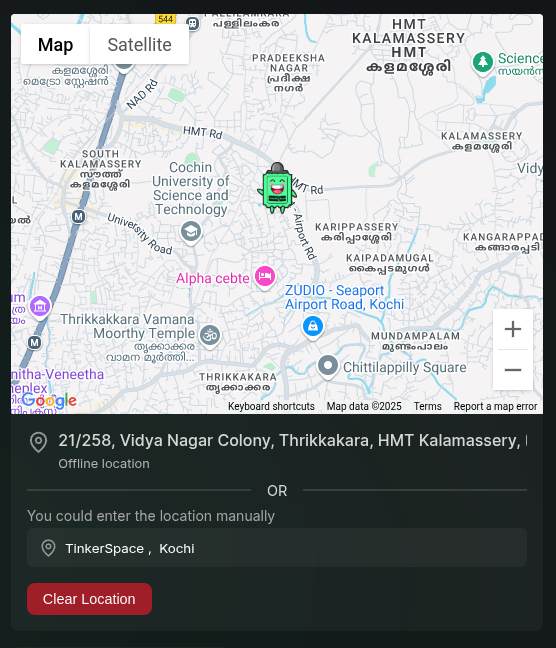 For **offline events** (when the **Online Event** toggle is **off**), you must set a **physical location**.
* Use the **embedded map** to search for and select the event venue.
* By using the input field below the map, you can search for a location by name or address.
* The map will automatically update to show the selected location. If the location name is too long, you can edit it in the input field.
## Updating the Event Logo
Upload an **event logo** to complete the initial setup.
* The logo appears in **event listings** and on the **dashboard**.
## Deleting an Event
You can delete an event **along with all associated data** using the **Delete** button.
There are some advanced settings that can be configured for the event. Such as
showing the tickets first in public form, enabling mutliple day checkin
Deleting an event is **permanent** and cannot be undone. Ensure you have backups if needed.
For **offline events** (when the **Online Event** toggle is **off**), you must set a **physical location**.
* Use the **embedded map** to search for and select the event venue.
* By using the input field below the map, you can search for a location by name or address.
* The map will automatically update to show the selected location. If the location name is too long, you can edit it in the input field.
## Updating the Event Logo
Upload an **event logo** to complete the initial setup.
* The logo appears in **event listings** and on the **dashboard**.
## Deleting an Event
You can delete an event **along with all associated data** using the **Delete** button.
There are some advanced settings that can be configured for the event. Such as
showing the tickets first in public form, enabling mutliple day checkin
Deleting an event is **permanent** and cannot be undone. Ensure you have backups if needed.