> ## Documentation Index
> Fetch the complete documentation index at: https://docs.makemypass.com/llms.txt
> Use this file to discover all available pages before exploring further.
# Coupons Management
> For **paid tickets**, you can create coupons to offer special discounts. This can be done by clicking the **Coupon** button on the event page.
Initially, this section is disabled if no coupons exist. Click **Add New Coupon Code** to start adding coupons.
## Adding a New Coupon
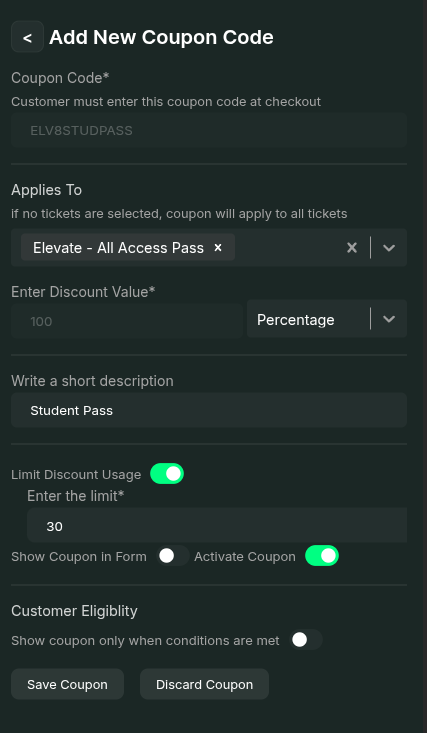 1. In the modal that opens, enter the **Coupon Code** (e.g., `DISCOUNT50`, `EARLYBIRD25`).
2. Select the **tickets** to which this coupon applies from the dropdown.
3. Enter the **discount value** (either a fixed amount or a percentage). The discount cannot exceed the original ticket price.
4. Provide a **short description** for reference.
5. Set the **Limit Usage** to restrict how many times the coupon can be used. Once the limit is reached, the coupon can no longer be redeemed.
6. Enable **Show Coupon in Form** if you want all users registering for the event to see this coupon.
Coupon Codes cannot be changed once they are being used by atleast one attendee.
The coupon will be **displayed** in the form but will not be **applied automatically**—users must apply it manually.
7. Lastly, **activate the coupon** to make it usable.
8. Once all required fields are filled, click **Save Coupon** to finalize the coupon.
## Enable Coupons Field
To display the coupon input field in the registration form:
1. In the modal that opens, enter the **Coupon Code** (e.g., `DISCOUNT50`, `EARLYBIRD25`).
2. Select the **tickets** to which this coupon applies from the dropdown.
3. Enter the **discount value** (either a fixed amount or a percentage). The discount cannot exceed the original ticket price.
4. Provide a **short description** for reference.
5. Set the **Limit Usage** to restrict how many times the coupon can be used. Once the limit is reached, the coupon can no longer be redeemed.
6. Enable **Show Coupon in Form** if you want all users registering for the event to see this coupon.
Coupon Codes cannot be changed once they are being used by atleast one attendee.
The coupon will be **displayed** in the form but will not be **applied automatically**—users must apply it manually.
7. Lastly, **activate the coupon** to make it usable.
8. Once all required fields are filled, click **Save Coupon** to finalize the coupon.
## Enable Coupons Field
To display the coupon input field in the registration form:
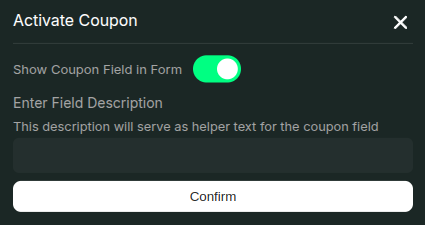 1. Click the **Coupons are not active** red button on the event page.
2. In the modal that appears, enable the **Show Coupon Field in Form** toggle.
3. Enter an optional description for the coupon field to provide context for attendees (e.g., "Enter a valid coupon code to receive a discount on your ticket").
4. Click **Confirm** to fully enable coupons for your event.
Once enabled, attendees will see a coupon input field during registration where they can enter any active coupon codes.
1. Click the **Coupons are not active** red button on the event page.
2. In the modal that appears, enable the **Show Coupon Field in Form** toggle.
3. Enter an optional description for the coupon field to provide context for attendees (e.g., "Enter a valid coupon code to receive a discount on your ticket").
4. Click **Confirm** to fully enable coupons for your event.
Once enabled, attendees will see a coupon input field during registration where they can enter any active coupon codes.