> ## Documentation Index
> Fetch the complete documentation index at: https://docs.makemypass.com/llms.txt
> Use this file to discover all available pages before exploring further.
# View Guest Information
> Organizers can view detailed information about any guest by clicking on their name.
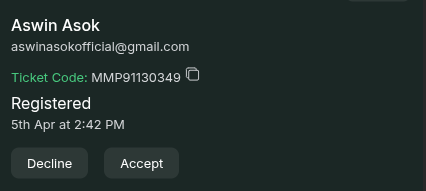
A modal will open displaying:
the basic details of the guest, including: **Name, Email, Ticket Code, Shortlisting Status, Registration Date & Time, Check-in Date & Time.**
### Shortlisting Actions
If the event has waitlisting enabled, organizers will see two action buttons:
Shortlists the guest for the event. A confirmation email with ticket will be automatically sent to the guest's email address.
Opens a popup where organizers can:
* Enter an optional rejection reason
* Toggle "Allow Resubmission" if the guest should be permitted to update and resubmit their submission
* Confirm the rejection
 ### Available Actions
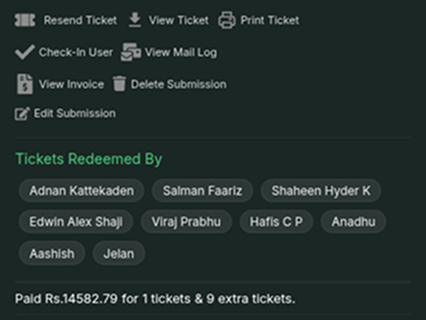
Send the guest their ticket again via email.
Open and review the guest's ticket details.
Generate a printable version of the ticket (for ID cards).
Manually check in the guest for the event.
See the emails sent to this guest.
Access the invoice for a paid event ticket.
Remove the guest's registration entry.
Modify the guest's submitted information.
Display the guest's certificate (Beta Feature, if applicable).
## Ticket Consumption and Redemption Status
Guests may purchase multiple tickets, including for themselves, and pay as a single entity. They receive a link to share with friends, who can then redeem the tickets. The guest modal will display:
* **Total Tickets Purchased**
* **Names of Guests Who Redeemed Them**
## Coupon & Payement Usage
If a guest used a coupon code during registration, this will also be displayed in the modal
along with the amount paid.
### Available Actions
Send the guest their ticket again via email.
Open and review the guest's ticket details.
Generate a printable version of the ticket (for ID cards).
Manually check in the guest for the event.
See the emails sent to this guest.
Access the invoice for a paid event ticket.
Remove the guest's registration entry.
Modify the guest's submitted information.
Display the guest's certificate (Beta Feature, if applicable).
## Ticket Consumption and Redemption Status
Guests may purchase multiple tickets, including for themselves, and pay as a single entity. They receive a link to share with friends, who can then redeem the tickets. The guest modal will display:
* **Total Tickets Purchased**
* **Names of Guests Who Redeemed Them**
## Coupon & Payement Usage
If a guest used a coupon code during registration, this will also be displayed in the modal
along with the amount paid.
 ## Form Information
All form details submitted by the guest during registration will be available for review.
## Resubmission History
If an admin has rejected a user's submission with the "Allow Resubmission" option enabled, the form information will be displayed in a paginated format:
* The latest submission appears first
* Previous submissions can be accessed via pagination controls
* Each submission shows the date and status (rejected/pending/approved)
* Rejection reasons are displayed for each rejected submission
## Related Event Submissions
### Sub-Event Submissions
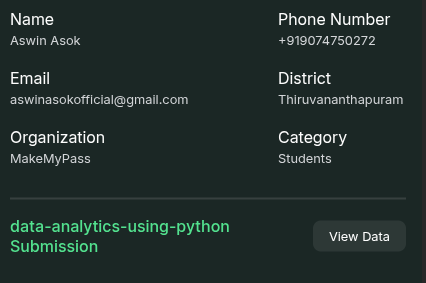
If the current event is a main event with child events (sub-events):
* Any sub-event registrations by this guest will be displayed
* Each sub-event entry includes event name, registration date, and status
* A "View Data" button navigates to the guest's record in the specific sub-event
* Clicking this button opens the guest view for that sub-event
## Form Information
All form details submitted by the guest during registration will be available for review.
## Resubmission History
If an admin has rejected a user's submission with the "Allow Resubmission" option enabled, the form information will be displayed in a paginated format:
* The latest submission appears first
* Previous submissions can be accessed via pagination controls
* Each submission shows the date and status (rejected/pending/approved)
* Rejection reasons are displayed for each rejected submission
## Related Event Submissions
### Sub-Event Submissions
If the current event is a main event with child events (sub-events):
* Any sub-event registrations by this guest will be displayed
* Each sub-event entry includes event name, registration date, and status
* A "View Data" button navigates to the guest's record in the specific sub-event
* Clicking this button opens the guest view for that sub-event
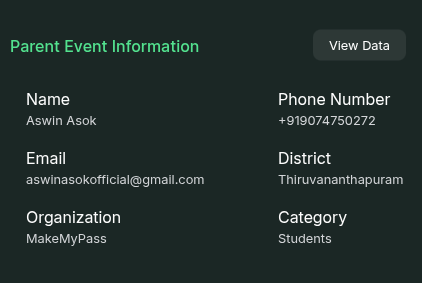
 ### Parent Event Submission
If the current event is a sub-event:
* The guest's submission for the parent event will be displayed
* Basic information about their parent event registration status is shown
* A "View Data" button navigates to the guest's record in the main event
### Parent Event Submission
If the current event is a sub-event:
* The guest's submission for the parent event will be displayed
* Basic information about their parent event registration status is shown
* A "View Data" button navigates to the guest's record in the main event