> ## Documentation Index
> Fetch the complete documentation index at: https://docs.makemypass.com/llms.txt
> Use this file to discover all available pages before exploring further.
# In-Event
> The **In-Event** page provides real-time check-in statistics and analytics for an ongoing event.
## Glance Section
 Similar to the **Glance View** in the **Overview Section**, this section displays:
* The check-in count against total registrations, split by category.
* For multi-day check-in events, the check-ins for the current day are also displayed separately.
## Graphs
Similar to the **Glance View** in the **Overview Section**, this section displays:
* The check-in count against total registrations, split by category.
* For multi-day check-in events, the check-ins for the current day are also displayed separately.
## Graphs
 ### Check-In Trends (Line Graph)
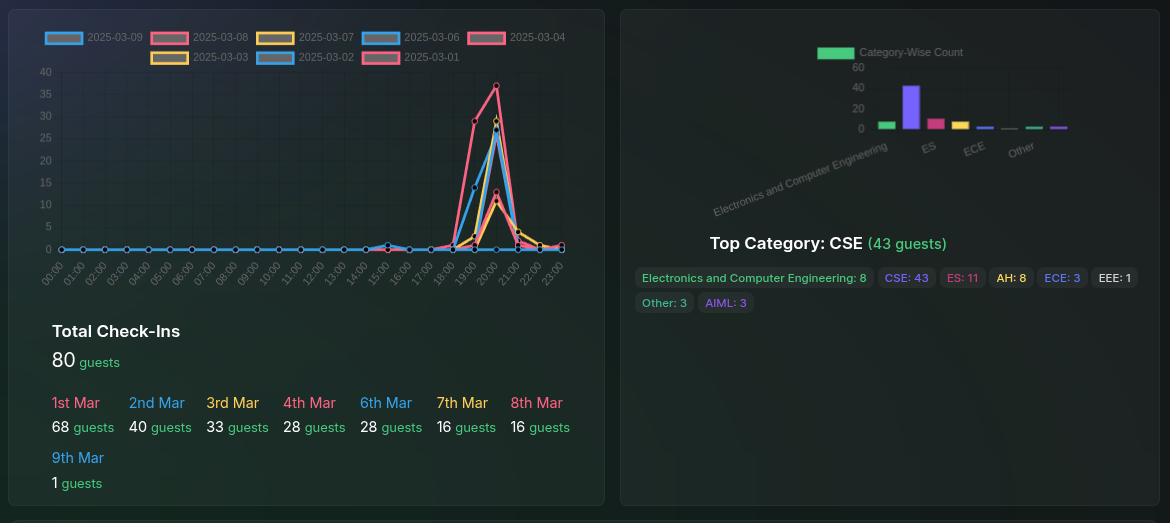
* The first graph is a **line graph** showing the number of check-ins per hour for the day.
* If the event spans multiple days, multiple lines will be present on the graph, each representing a different day.
* The check-in counts are also displayed below the graph in a readable numeric format.
### Category-Wise Check-Ins (Bar Graph)
* The second graph is a **bar graph** displaying the total number of check-ins per category.
* This is an **aggregate graph**, meaning it does not categorize data by event date.
### Check-In Trends (Line Graph)
* The first graph is a **line graph** showing the number of check-ins per hour for the day.
* If the event spans multiple days, multiple lines will be present on the graph, each representing a different day.
* The check-in counts are also displayed below the graph in a readable numeric format.
### Category-Wise Check-Ins (Bar Graph)
* The second graph is a **bar graph** displaying the total number of check-ins per category.
* This is an **aggregate graph**, meaning it does not categorize data by event date.
 ## Recent Check-Ins
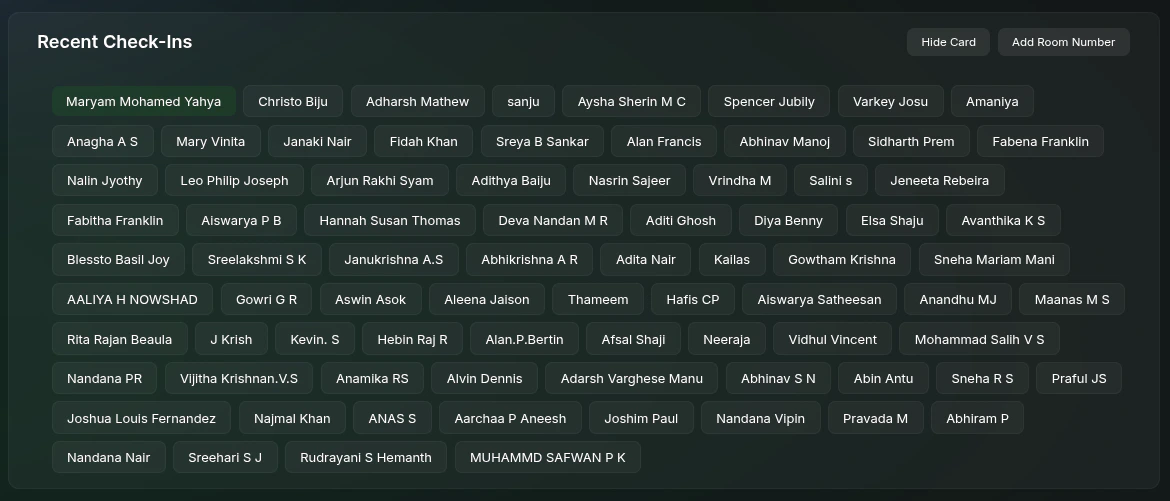
* A list of the most recent check-ins, displaying guest names in real time.
* A **welcome banner** automatically pops up when a new check-in occurs.
## Unique Room Number
For venues with multiple check-in points, this feature ensures organized guest check-ins:
### Adding Room Numbers
## Recent Check-Ins
* A list of the most recent check-ins, displaying guest names in real time.
* A **welcome banner** automatically pops up when a new check-in occurs.
## Unique Room Number
For venues with multiple check-in points, this feature ensures organized guest check-ins:
### Adding Room Numbers
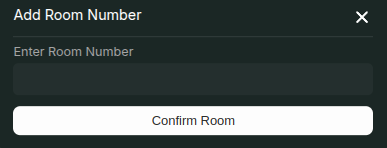 * Click on the **Add Room Number** button to add a room number.
* In the pop-up, enter the **room number**.
* Click **Add** to save the room number.
### How It Works
1. **Multiple Monitors Setup**
* Two separate monitors can be placed in hallways leading to check-in areas.
* Each monitor corresponds to a specific check-in hall.
2. **Room Number Assignment**
* While scanning, the volunteer can enter the room number.
* The system will display the room number on the monitor.
* The welcome banners are displayed accordingly, ensuring guests are guided to the correct check-in area.
* Click on the **Add Room Number** button to add a room number.
* In the pop-up, enter the **room number**.
* Click **Add** to save the room number.
### How It Works
1. **Multiple Monitors Setup**
* Two separate monitors can be placed in hallways leading to check-in areas.
* Each monitor corresponds to a specific check-in hall.
2. **Room Number Assignment**
* While scanning, the volunteer can enter the room number.
* The system will display the room number on the monitor.
* The welcome banners are displayed accordingly, ensuring guests are guided to the correct check-in area.